Quick start
From download to your first arranged board in about five minutes.
-
Download and run
Grab
shoebox-vX.Y.Z-windows-amd64.exefrom the latest release and run it. It's a portable executable — no installer, no admin rights. Shoebox uses the WebView2 runtime that ships with Windows 10/11; in the rare case it's missing, install the Evergreen WebView2 Runtime.On macOS or Linux? Shoebox is cross-platform by design but only Windows builds are published — see building from source.
-
Choose a folder for your notes
On first launch, Shoebox asks for a notes folder — click Choose folder… and pick (or create) any directory. Everything you write lives there as plain Markdown, in two subfolders Shoebox maintains:
Decks/andBoards/. The app is a view over that folder, never the owner of it: sync it, version it, edit it with other tools, or delete the app entirely — your notes are untouched. -
Create a deck
A deck holds the cards drawn from one work — a book you're reading, an interview set, a research paper. Click New deck, name it, and optionally set its source (work title and author). Every card you write in the deck inherits that source automatically.
-
Write cards
In the deck, click + New card (or press Ctrl+N). One idea per card: a title, a short Markdown body, and a page locator so you can always find your way back to the source. Ctrl+P toggles a rendered preview; Ctrl+Enter saves and closes.
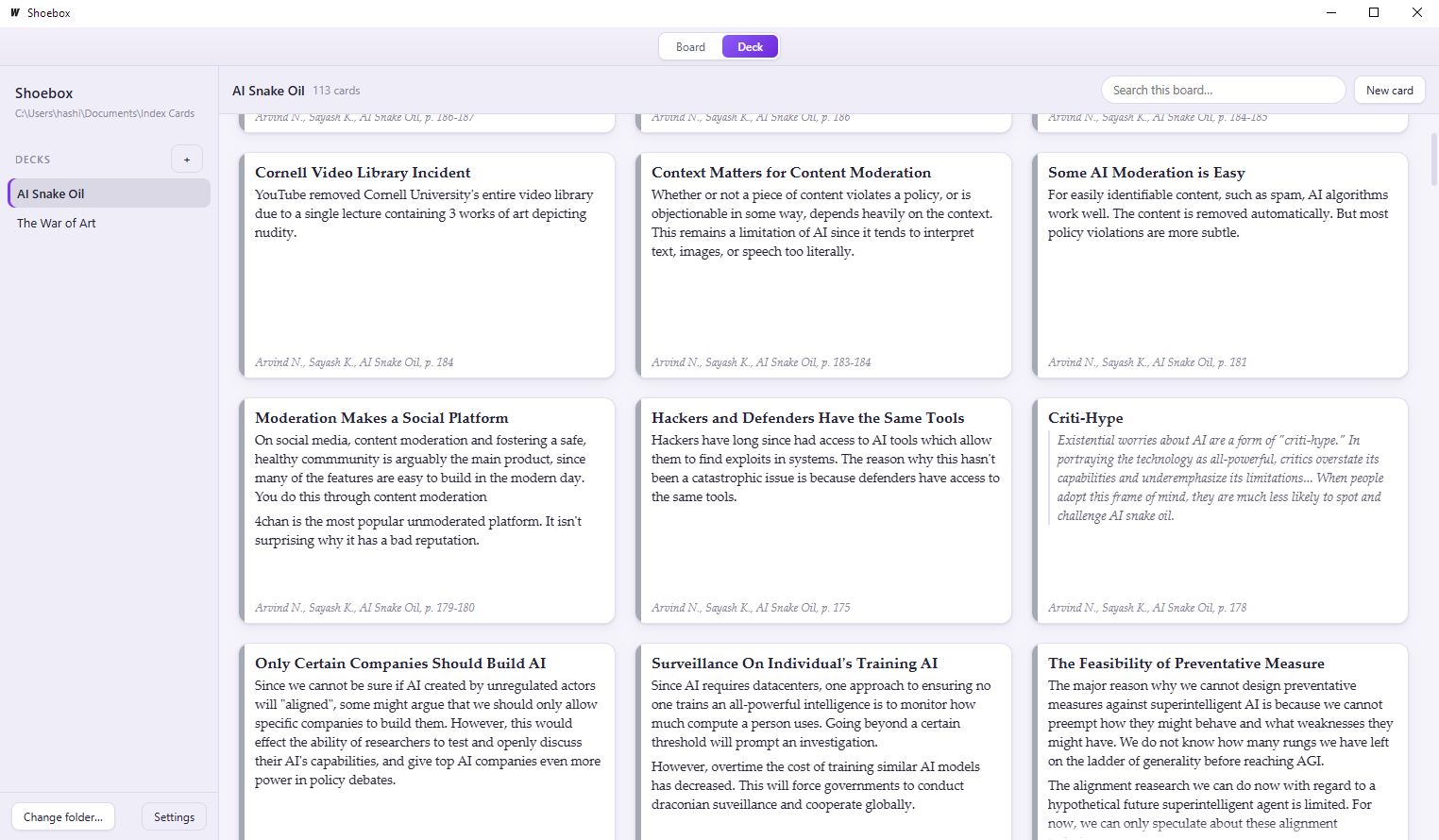
The Deck view shows a whole deck at reading size — drag cards to reorder them, and the arrangement is saved back to the deck.
-
Make a board and place cards
A board is a project — a chapter, an essay, a talk. Switch to Board view (Ctrl+1), click New board, then open the deck explorer with Show decks and drag cards onto the canvas. Placing a card doesn't move or copy the file — a board only records where you put each card, so the same card can sit on any number of boards.
-
Arrange, categorize, and think
Drag cards around the dot grid; shift-click or rubber-band to multi-select and move groups. Give cards a category — a name and a color, shown as a stripe on the card's edge. Categories belong to the board, not the card: the same excerpt can be “Perception” in one project and “Introduction” in another. Zoom with Ctrl+scroll, pan with the middle mouse button — each board remembers its own zoom and position.
Your notes are just files
Open your notes folder and this is all there is — no database, no lock-in, no absolute paths:
NotesRoot/
├── Decks/
│   └── Meditations/
│       ├── _deck.md          # deck metadata: source, card order
│       └── amor-fati.md      # one card
└── Boards/
    └── The Obstacle Book.md  # placements: which cards, where, what category
A card is YAML frontmatter plus a Markdown body:
---
id: 01J8ZQ4T9V4Y5C1N7R2E8K3W6M
title: Amor fati
source:
  title: Meditations
  author: Marcus Aurelius
  page: "4.7"
created: 2026-08-27T10:00:00Z
modified: 2026-08-27T10:00:00Z
---

The impediment to action advances action.
What stands in the way becomes the way.
Edit any file in Obsidian, VS Code, or anything else — Shoebox watches the folder and updates live. Its own writes are atomic, deletes go to the Recycle Bin, and frontmatter keys it doesn't know are preserved untouched.
Keyboard shortcuts
The defaults — every one of them remappable in Settings. On macOS, Ctrl is ⌘.
| Shortcut | Action |
|---|---|
| Ctrl+1 / Ctrl+2 | Board view / Deck view |
| Ctrl+N | New card in the selected deck |
| Ctrl+F | Search — scoped to the board, the deck, or all decks |
| Ctrl+A | Select all |
| Delete | Remove selected cards from the board (the files stay) |
| Ctrl+0 | Reset zoom |
| Enter | Edit the focused card |
| Space | Toggle selection of the focused card |
| Ctrl+P | Toggle editor preview |
| Ctrl+Shift+P | Jump to the page field |
| Ctrl+Enter | Save and close the editor |
Where to go next
- Source code and README — building from source, development setup
- Product spec and data-model docs — how decks, boards, and placements work on disk
- Issues — bugs and ideas welcome